my_page
Tmux
tmux uses windows and panes.
- window - think of it like a tab; only one window is ever visible at a time (this guide won’t address windows)
- pane - belongs to a window; you can have many of these visible at once
[TOC]
How to Install tmux
To install Tmux using default repositories, run the installation command using the system’s default package manager.
Install Tmux on Ubuntu and Debian
sudo apt-get install tmux

Install Tmux on RedHat and CentOS
sudo yum install tmux
tmux Commands
Start a New Named Session
To start a new named session, type the following command:
tmux new -s session_name
Instead of session_name, type the name you want assign to the session.
Split Pane tmux
Tmux allows splitting the screen both horizontally and vertically.
Split the screen horizontally: CTRL+b+"

Split the screen vertically: CTRL+b+%
Exit tmux Pane
If you need to exit a pane, just type exit and press Enter. Alternatively, press CTRL+d. The currently selected pane will close.

Moving Between Panes
The pane you’re working in is highlighted in green. To toggle between panes, use CTRL+b+o.
Tmux assigns a number to each pane. You can quickly press the number of a pane to switch to it. For example, CTRL+b+q will display the numbers, then quickly pressing 1 will switch to pane 1.
Resize Panes
You can change the size of each pane. To do so, press CTRL+b+:.
The bottom bar will change from green to yellow. Now you can type a command to resize the pane:
resize-pane -D – Moves the boundary line for the pane downward.
resize-pane -U – Moves the boundary line for the pane upward.
resize-pane -R – Moves the boundary line for the pane right.
resize-pane -L – Moves the boundary line for the pane left.
You may also specify a specific number of cells to move the boundary line. For example:
resize-pane -U 10 – Moves the boundary line up 10 cells.
You can specify a different cell than the one you’re working in. To resize Cell 2 (lower right):
resize-pane –t 2 --R 5 – Moves the boundary line 5 cells to the right.
Resizing has a couple of considerations. First, resizing only works on the boundary line between cells. If the cell doesn’t have a boundary line, the command won’t work. For example, trying to resize the upper cell right won’t work, because it’s already the full width of the screen.
Second, resizing a shared boundary line can change the size of another cell. For example, moving the upper boundary line of cell 1 will also change the size of cell 2.
Zoom in to Pane
Zooming into a pane works just like maximizing a window in a graphical interface (GUI).
Press CTRL+b+: and type resize-pane -Z.
This will expand the current pane. Use the same command to set it back to normal.
Detaching and Reattaching
Tmux can be used to keep a process working in the background. You can detach from the current session by typing:
tmux detach
Your system will drop to a normal command line. There should be an output that reads [detached (from session X)].
You can re-attach to the session by typing:
tmux attach
The system will re-enter the live tmux session, and pick up just where you left off.
To attach to a specific named session:
tmux a -t session_name
Instead of session_name, type the real name of the session.
List Active Sessions
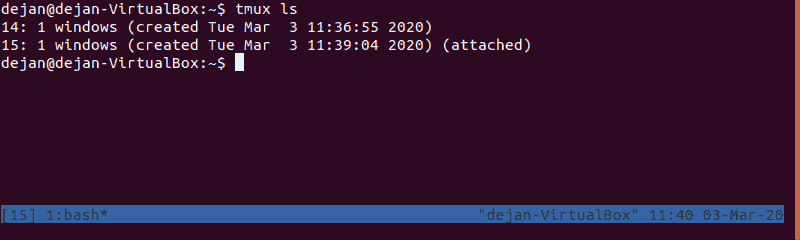
To list all active sessions type tmux ls and hit Enter.
Working With Windowed Screens
Your screen can become cluttered if you have too many panes open. Create a new full-screen window by entering CTRL+b+c.
Rename Window
To rename a window, switch to it and use the comma key: CTRL+b+,
The status bar at the bottom will change color to yellow. You can backspace to delete the existing name, then type a new name for this window.

Switch Between Windows
To switch to the next window in order press: CTRL+b+n
To switch to the previous window press: CTRL+b+p
Display List of Windows
You can display an interactive list of windows with CTRL+b+w.
Use the up/down arrow keys to select the window you want to use, then press enter.
Closing a Window
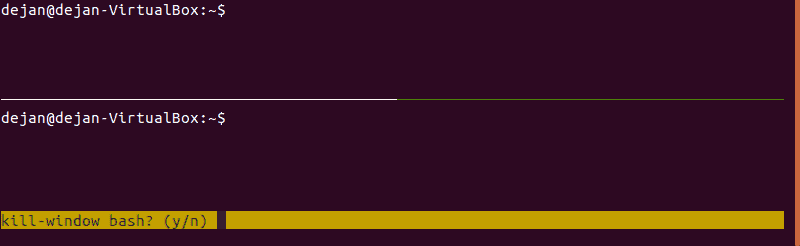
Close a tmux window with CTRL+b+&. Confirm your choice by typing y.
Closing all windows will exit tmux.
How to Use and Configure tmux
Like most Linux applications, tmux is highly configurable. Edit the tmux.conf file to make changes.
Your system may not have a tmux.conf file by default. To create custom changes for a single user, create the file in the user’s home directory ~/.tmux.conf. To create system-wide changes, create the file in the system directory /etc/tmux.conf.
Change Activation Key
By default, tmux uses the CTRL+b combination to activate functions. To change it, edit the configuration file with a text editor of your liking. We will be using nano:
sudo nano /etc/tmux.conf
Add the following lines:
unbind C-b set –g prefix C-a
Save the changes and exit. Now, whenever you use tmux, you’ll use CTRL+a to activate functions.
Change Keys to Split Panes
You can remap function keys. Open the /etc/tmux.conf file for editing:
sudo nano /etc/tmux.conf
Add the following lines:
unbind % bind h split-window –h unbind ‘“‘ bind v split-window –v
Save and exit. This remaps the horizontal split to CTRL+b+h, and the vertical split key to CTRL+b+v.
Change Status Bar Appearance
Open the configuration file for editing:
sudo nano /etc/tmux.conf
Add the following lines:
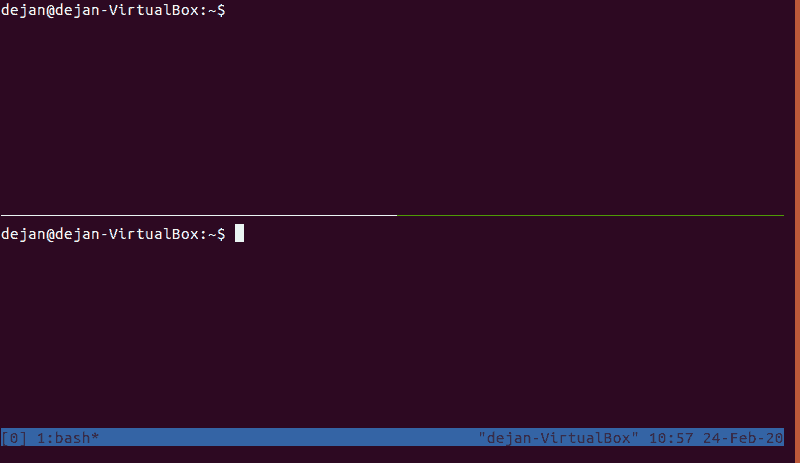
# Status bar colors set –g status-bg blue set –g status-fg black # highlight and display setw –g monitor-activity on setw –g visual-activity on
You may use a numerical code (0 – 255) to specify a color. The # sign marks a comment, which is used to explain the change. This lets you make notes without the system reading the text as code.
Save the changes and exit the file.
Change Pane Numbering
Open and edit the tmux configuration file:
sudo nano /etc/tmux.conf
Add the following lines:
# Start window numbering at 1 instead of 0 set –g base-index 1 # Start pane numbering at 1 instead of 0 set –g pane-base-index 1
Now when you display the windows or panes, numbering will start at 1 instead of 0. Save the changes and exit the file.
Conclusion
In this extensive tmux tutorial, you have learned how to install tmux as well as work with multiple sessions, panes, and windows. Additionally, you have learned how to configure tmux to your liking.
Undoubtedly, tmux adds a handy set of features to your terminal window. Options like windowing and reattaching to a session make it a powerful tool.